A Tutorial for Agency Owners
Life coaching websites produce substantial content over time, especially since advice needs to be regularly adapted for changing world situations. To boost the value of their content, life coaches can create eBooks from blog posts spread across multiple topics – be it mindset shifts, goal-setting frameworks, and strategies to cope with trauma. These eBooks can be distributed and sold to the target audience for an immersive reading experience.
This tutorial walks through how to transform that content using the eBook Crafter WordPress plugin.
Why eBooks Work for Life Coaching Businesses
Consider what happens when a potential client visits a life coaching website looking for advice on goal setting. They might read a few blog posts and even share some, but much of the experience will be fragmented across browser tabs. Important concepts will be scattered across the site as separate pieces rather than a cohesive journey.
However, when you compile posts from the ‘goal-setting’ category into an eBook with the title “A Guide to Defining Your Life Goals”, you will create a more memorable reading experience. Your clients will not mind paying good money for this experience.
The Business Case for Life Coaching – Engagement and Revenue
Life coaching businesses can monetize eBooks created from posts through two channels, lead generation and direct sales.
Lead Generation Model
The eBook can be offered as a free download in exchange for an email address. This approach works well for coaches who sell high-ticket services like one-on-one coaching packages. The eBook will demonstrate expertise and teaching style, and should form the first impression of any coach, increasing the likelihood of readers booking discovery calls.
Direct Sales Model
Coaches can sell eBooks as standalone products, especially when the content delivers actionable outcomes derived from months and years of regularly published posts.
A coach specializing in helping clients cope with workplace burnout might price a comprehensive recovery guide at $49, positioning it as an affordable entry point for a large numbers of clients who can benefit from the more expensive offerings at a later stage.
Pricing Strategies for eBooks
Pricing is sensitive and requires careful thought for any products. Price too low and your audience may fail to see much value. Too high, and you drive away potential buyers. It is best to start out by pricing your eBooks slightly on the lower side initially and probing the response from your buyers for at least a year.
If you are confident your buyers are happy to pay according to the introductory pricing, you can gradually increase the price when you add valuable updates to your eBooks in the future.
For entry-level eBooks, a range of $9 to $19 should work well. A 20-page book titled “5 Morning Rituals to Boost Your Social Life in 2026” with genuine examples should fit well in this category.
A more comprehensive, mid-range eBook with detailed exercises and worksheets that seek to deliver a specific outcome after three months can be priced at around $49. Here’s an example of a clear value proposition to accompany an eBook in this category – “By the end of this eBook, you will have a 90-day action plan to kickstart a new phase in your career.”
You could also choose to put together a premium eBook for a deep dive into a topic. Anything upwards of $99 per eBook should work for offerings in this category. A title like “Braving Financial Uncertainty With Tough Decisions – A Life Coach’s Workbook” would fit well in this category.
Honest Sales Language
Life coaching audiences are sensitive to manipulative sales tactics, especially since they will be reaching out to you during major challenging phases in their lives and careers. They will be shocked by anyone trying to prey on their vulnerability and rake in dollars.
As an example, instead of “Transform your life TODAY with this EXCLUSIVE guide!” consider using “This guide compiles five years of career research into a 90-day framework to execute a transition. If you’re ready to put in the work, it provides the ready roadmap.”
As you can see, the second approach reassures the reader and sets honest expectations.
You are more likely to garner sales if you focus on the following three elements:
- A clear problem statement – “You’ve read a dozen self-help books but struggle to implement what you’ve learned.”
- The solution’s details – “This guide provides a timeline for transformation spread across daily 15-minute exercises, reducing the chance of getting overwhelmed by too many goals.”
- The promise of a realistic outcome – “Readers who complete the 30-day program report clearer decision-making and reduced anxiety while making major life decisions.”
Notice the absence of buzzwords, superlatives, and false promises of overnight transformation.
The Technical Process of Creating the eBook
The eBook Crafter plugin integrates directly with the WordPress installation, eliminating the need to copy over content into external tools.
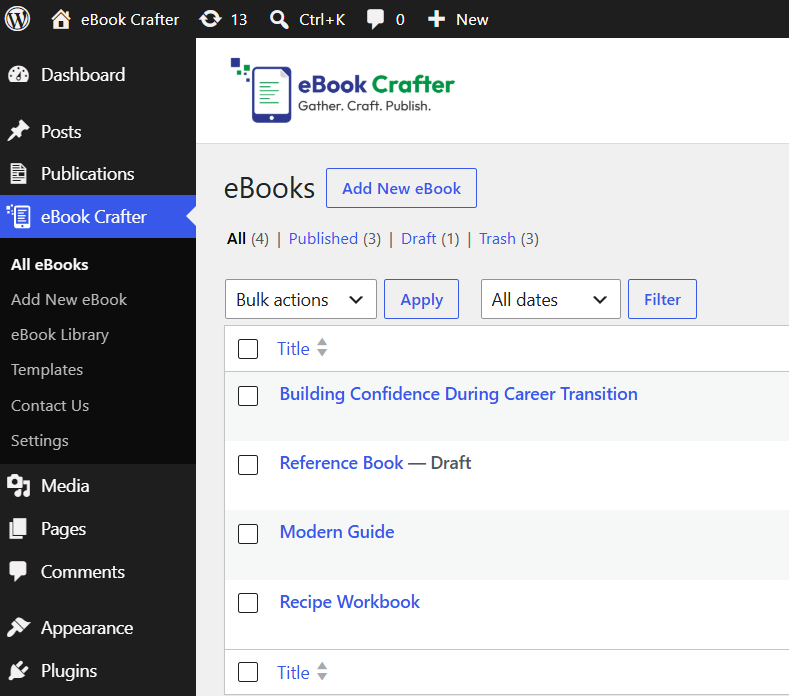
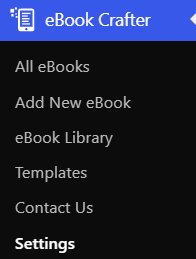
Upon installing the plugin, you will see the below menu added to your dashboard:
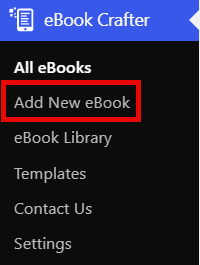
Upon clicking Add New eBook in your dashboard …
… you will be taken to a Block editor interface that will serve as a canvas for your eBook.
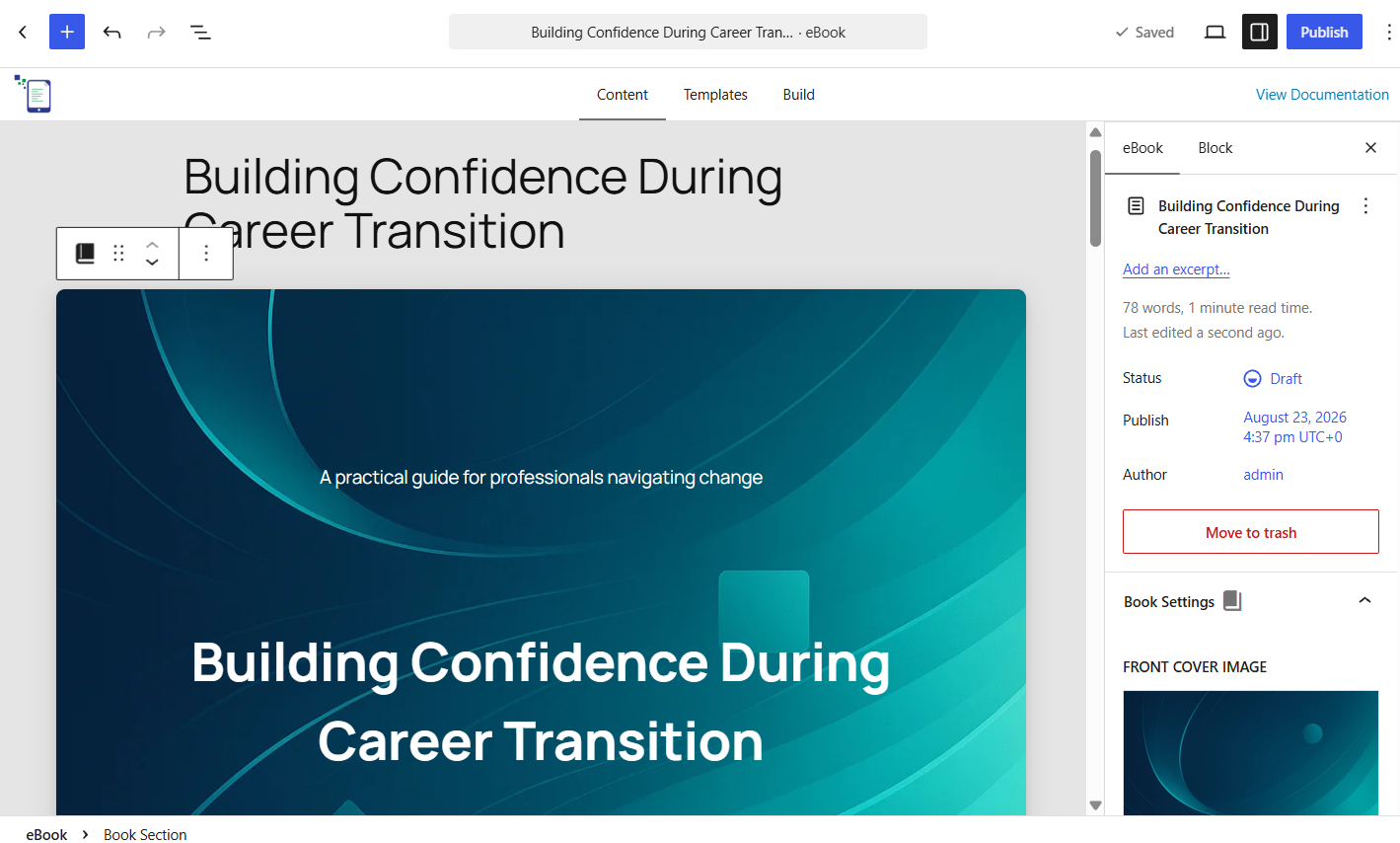
The canvas is based on WordPress’ native Block Editor, and is divided into Book Section blocks of four types – Front Cover, Table of Contents, Chapter and Back Cover.
Please note that saving and publishing this eBook will not make it visible to your site’s visitors. They will be available only internally for eBook generation.
As you scroll through the canvas, you can select the relevant Book Section block to change the background images for the covers, select and gather chapters, and modify their content.
The following sections describe the eBook creation workflow, which is based on three stages – Gather, Craft and Publish.
The Gather Stage
The Gather stage is meant for pulling in posts, custom posts or pages that will form the content for your eBook.
In the eBook creation canvas, scroll down to the third Book Section block, which is set to the Chapter type in the Settings. Although you will see the Table of Contents block first, you needn’t make any changes there since the Table of Contents block will be populated automatically.
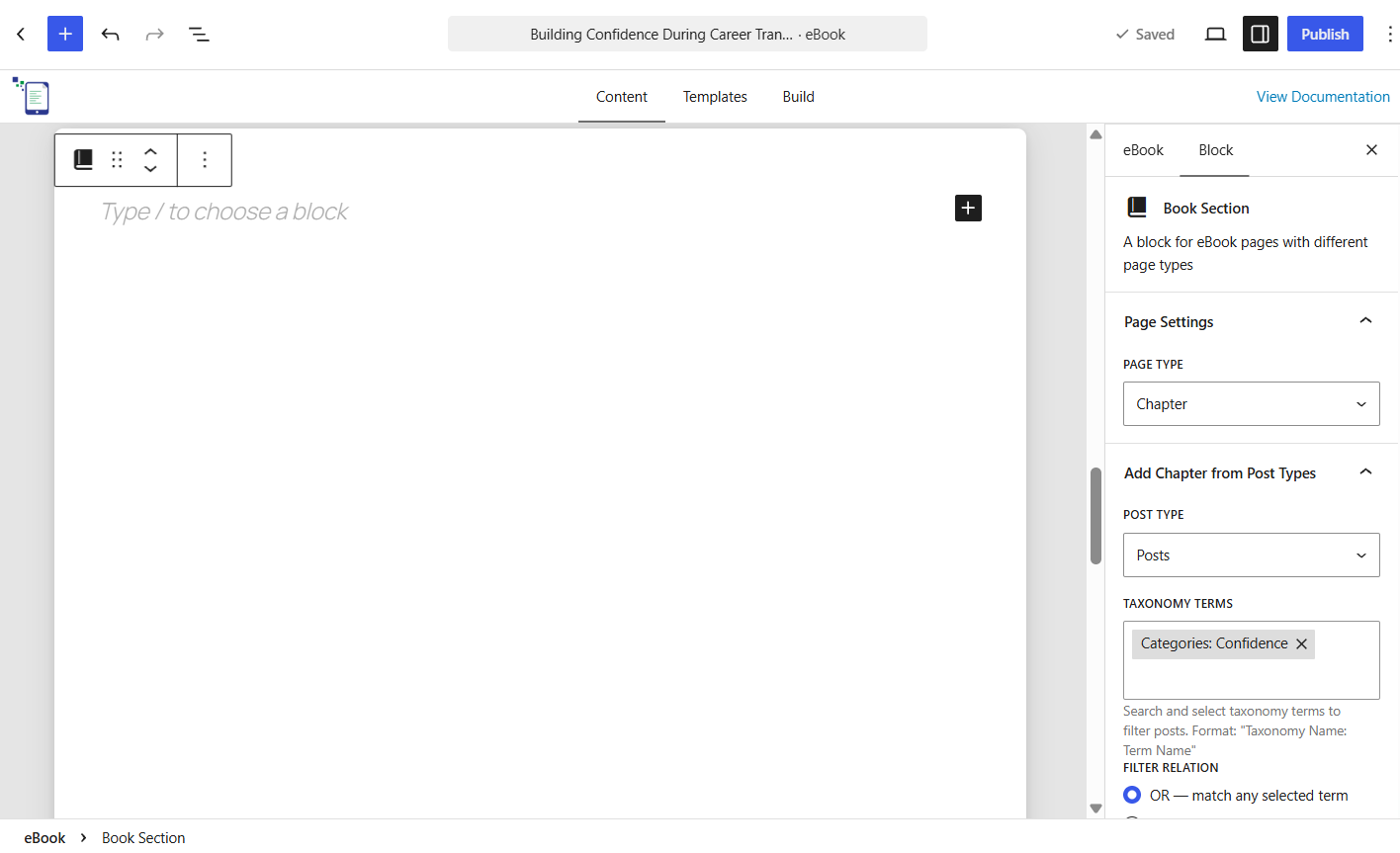
Initially, the Book Section of type Chapter will be blank.
Using the search filter in the Chapter Book Section’s Settings, you can either search by text, or specify a taxonomy like category or tag. Currently, you can search by text and taxonomy only, but we plan to add more options in the future.
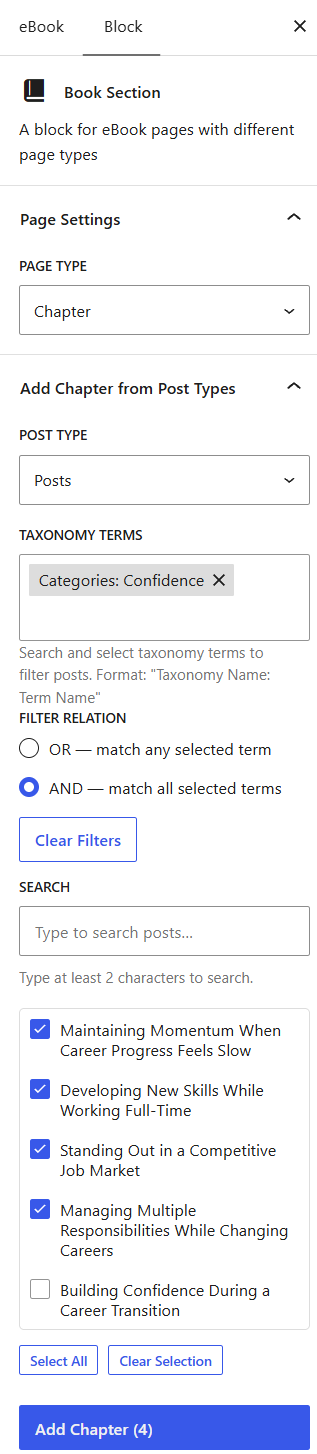
Set the appropriate options in the Filter By Post Type and Filter By Taxonomy Terms dropdowns to find the posts you need to include in your eBook. You can also use the Search Posts field to look for posts.
Next, click the Add Chapters button to add the posts you select to the eBook creation canvas.
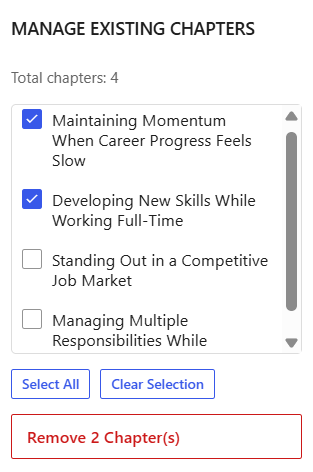
If you wish to remove any of the chapters, you can scroll further down in the Chapter Book Section’s block’s settings to select the chapters you wish to remove from the canvas, and click Remove Chapters.
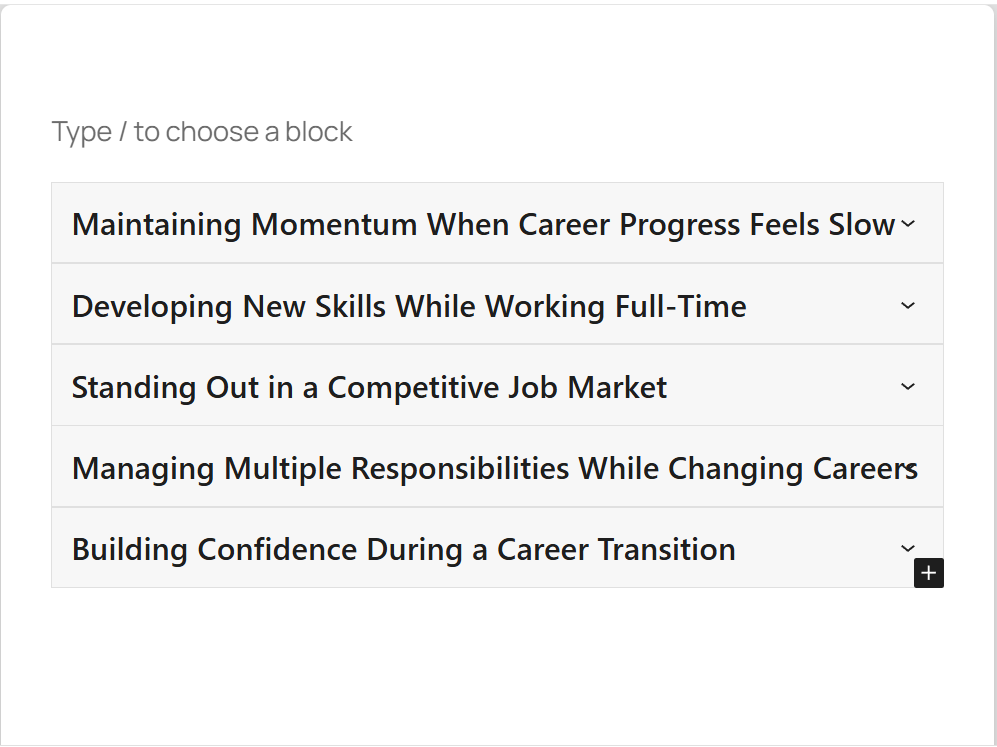
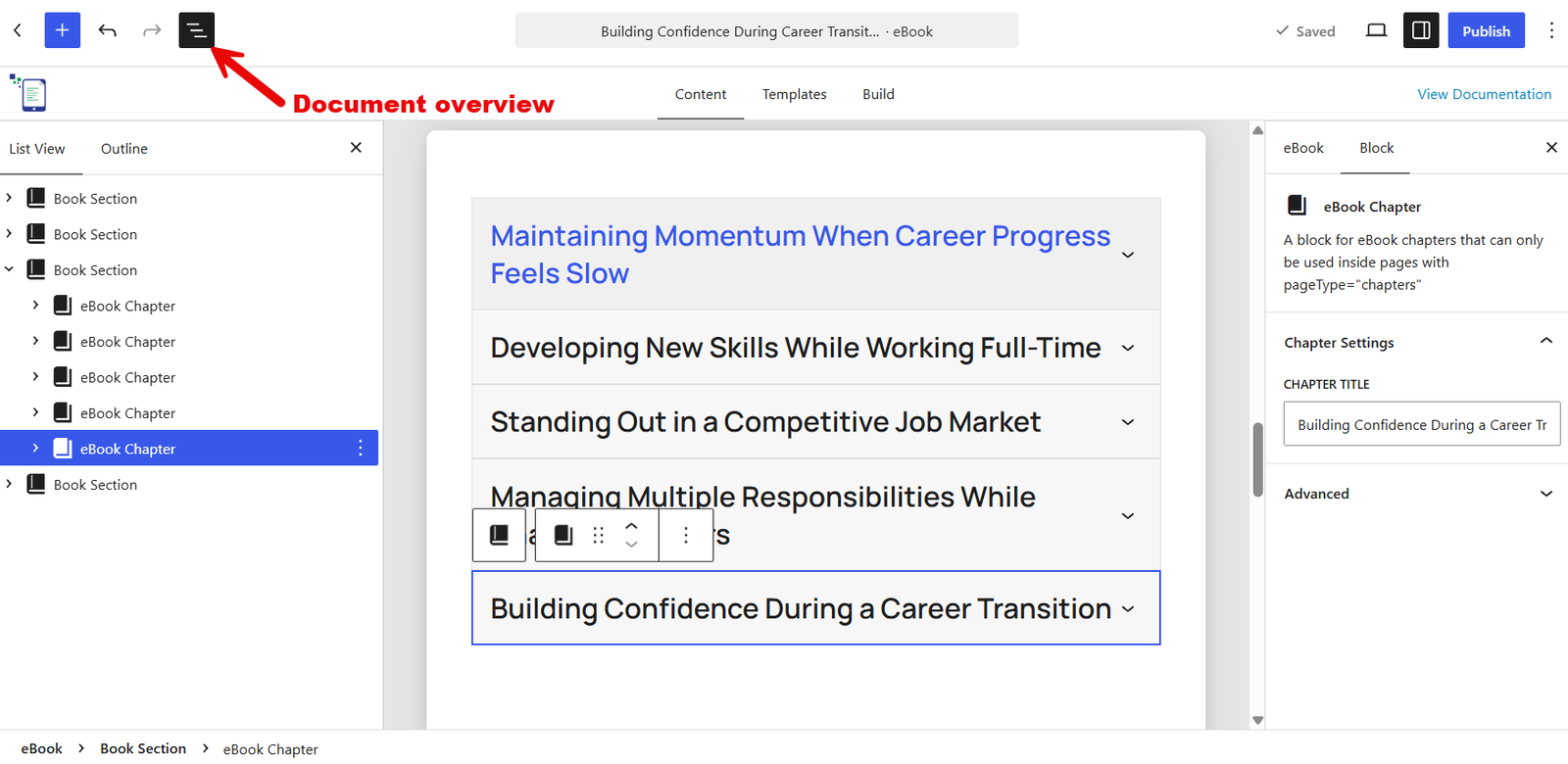
Coming back to the canvas, you will see a series of blocks called eBook Chapter blocks arranged in the order you added them.
If you wish you re-order them, click the Document Overview icon to reveal the List View of all blocks in the canvas. From here, you can click and drag an eBook Chapter to reposition it and change the order of the chapters gathered.
The Craft Stage
Now, you will get to craft stage where you can finalize text edits and add formatting for the eBook.
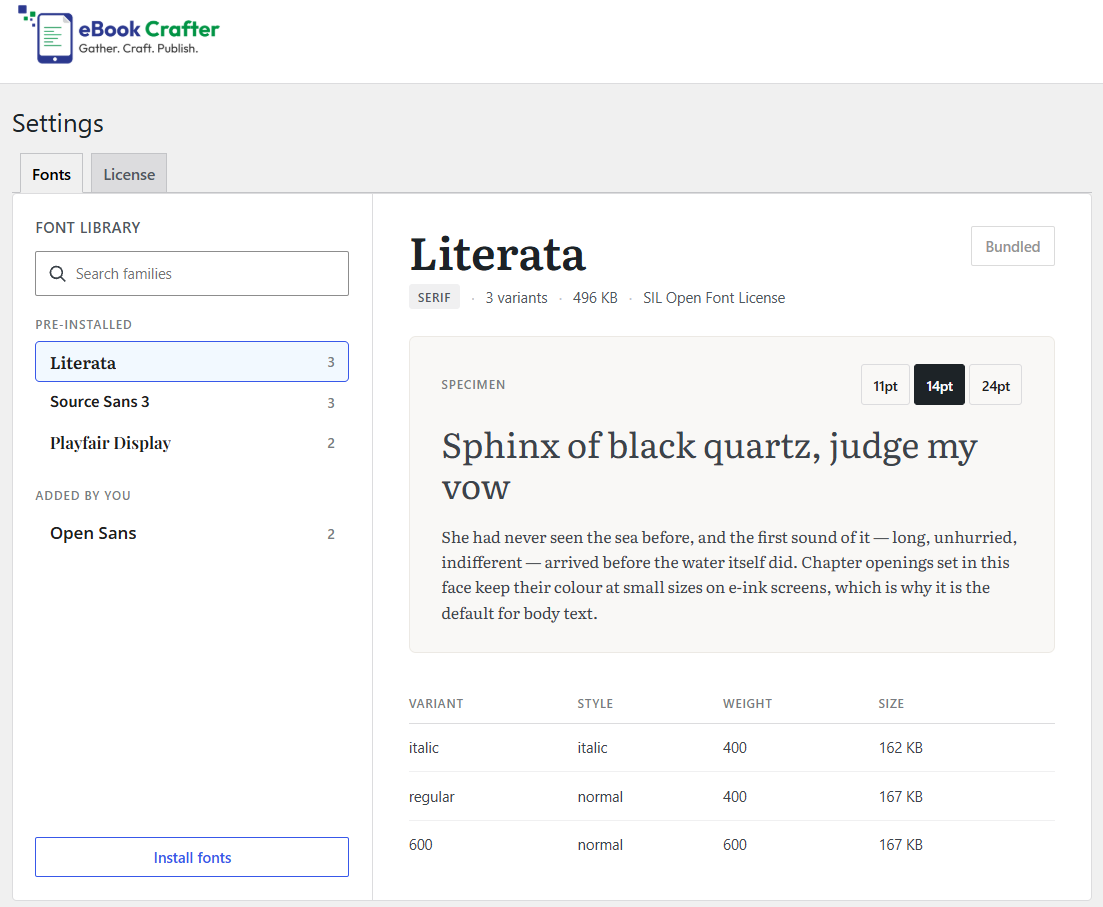
If you are running eBook Crafter Pro, you will get access to more than 1,900 Google fonts. To install the global fonts needed for the headings and paragraphs, go to Settings > Fonts …
… and notice how three pre-installed fonts are already available: Literata, Source Sans 3 and Playfair Display.
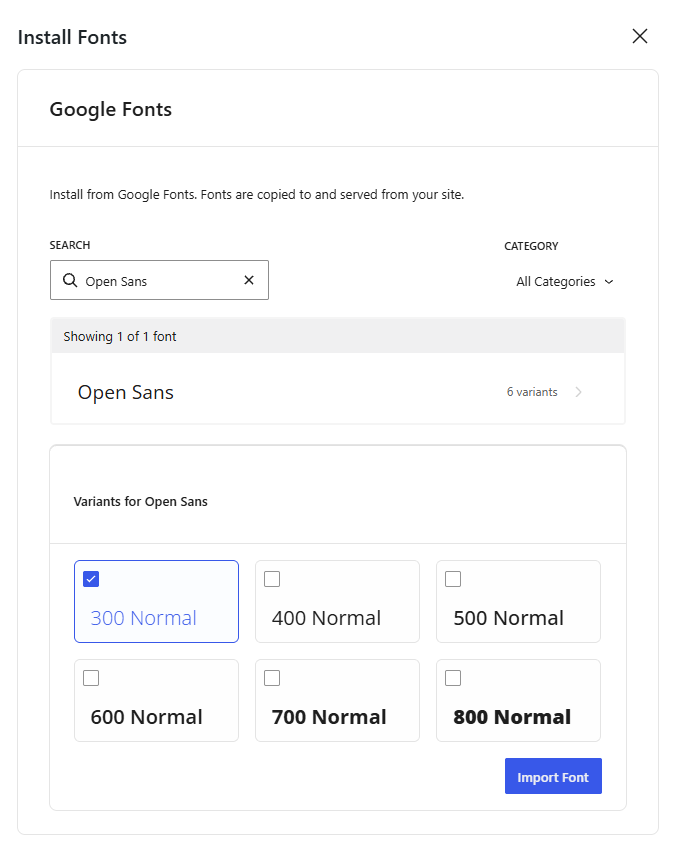
If you want to install fonts of your own choice, use the Install fonts tool to search for the desired Google Fonts.
Search for the font in the popup that opens, select the variants, and
You can now return to the canvas and start making updates to the front cover, main eBook text and back cover.
Click the eBook tab to apply a few general settings.
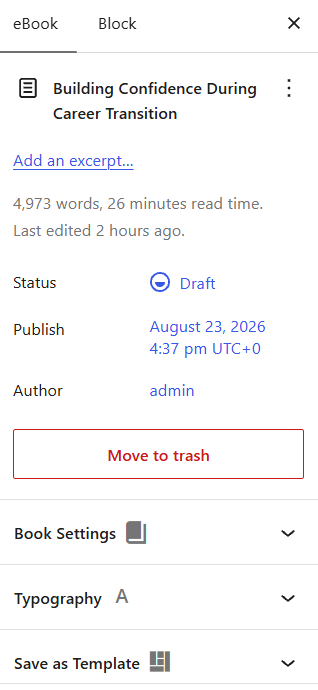
When you expand the Book Settings section, you can replace the default cover images for the front and back covers.
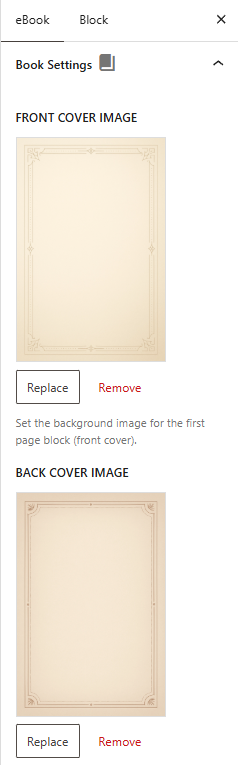
Currently, the default images can only be replaced with your own background images. Upon adding your own images, you can click Remove to restore the default images.
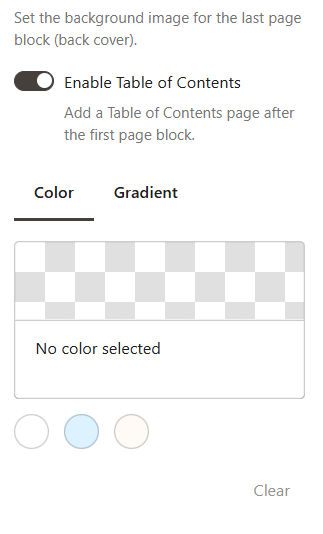
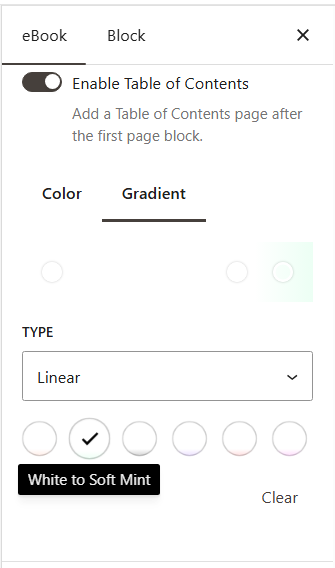
Further down in the Book Settings section, you can choose to enable Table of Contents and set a background color or gradient for every page in the eBook.
In our example, we will set a White to Soft Mint gradient.
Further down, you can use the Typography settings to set a Google font for the headings and paragraphs from among the ones you installed, as well as their respective font weights and line heights:
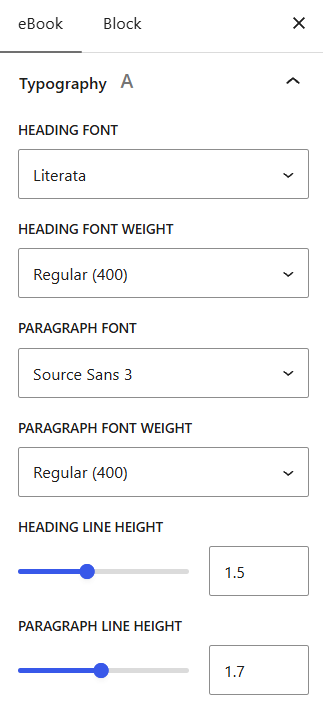
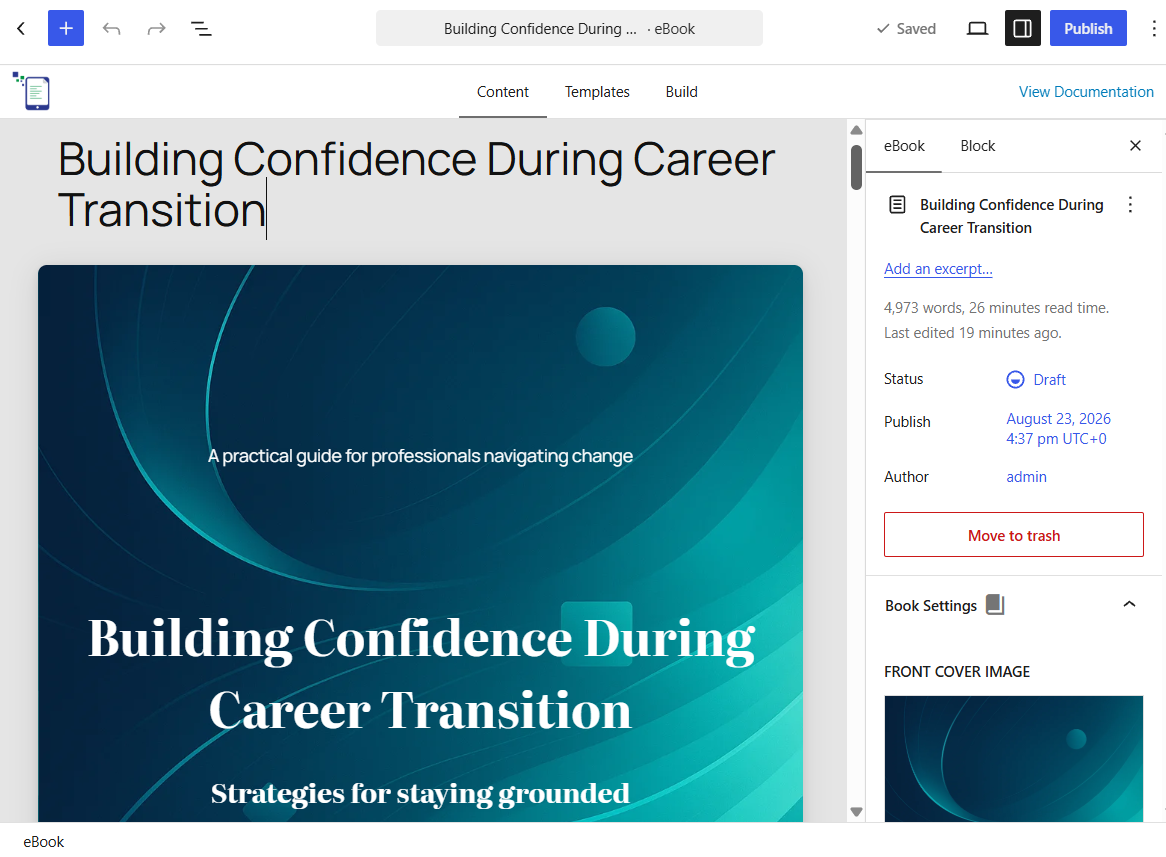
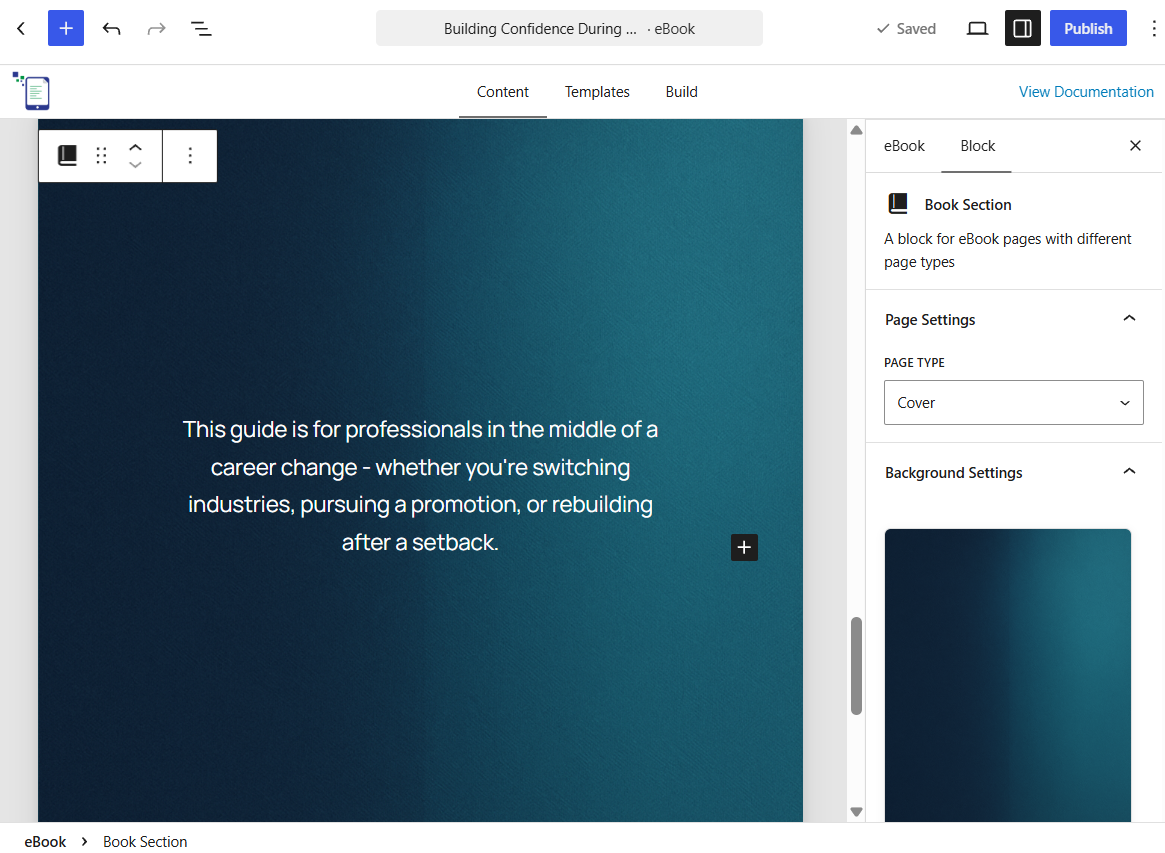
In the eBook’s Block Editor, you can add your own content to replace the placeholder content on the Front Cover:
If you have enabled Table of Contents for your eBook, the entries will be added automatically from the main headings of each post you add. In the Gather stage, the Table of Contents entries will initially be empty before you select and gather content.
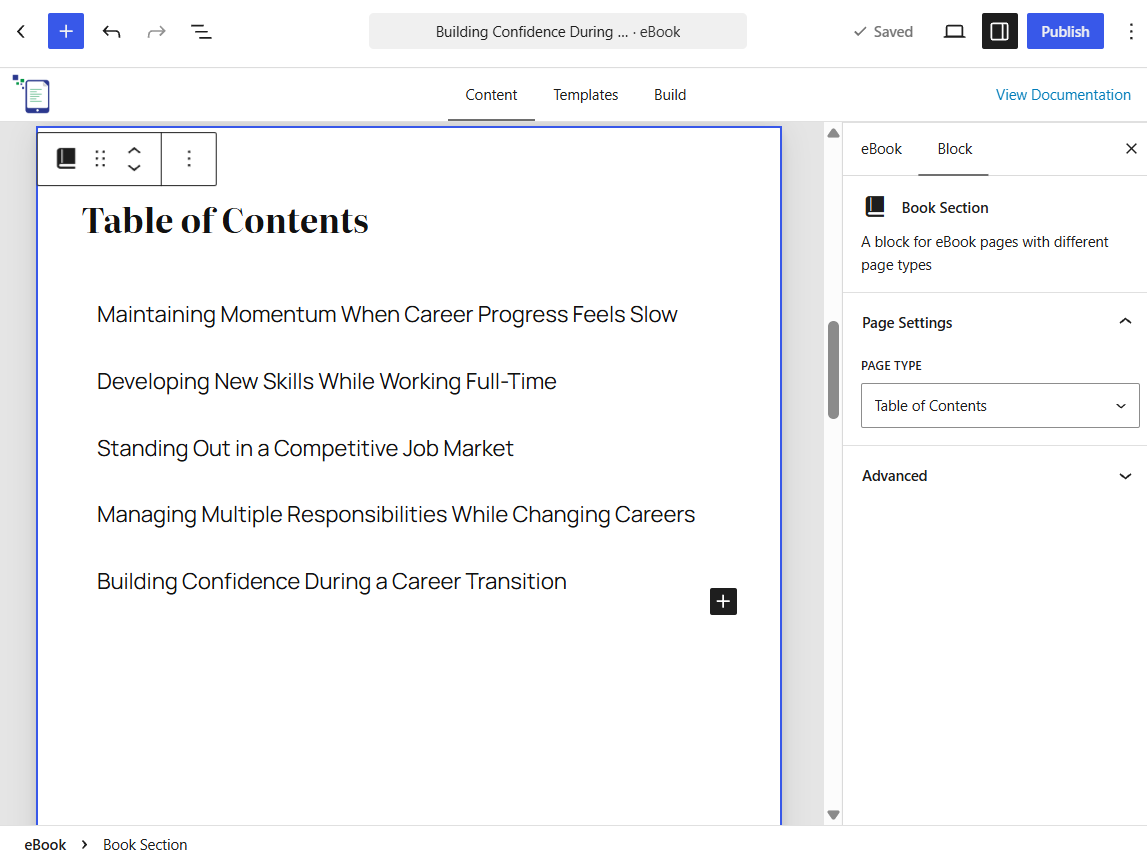
If you’re using eBook Crafter Pro, page numbers will be automatically added when you generate PDF eBooks using the Prince engine. Otherwise, the default PDF generation method does not include page numbers in the Table of Contents.
Next, in the Chapter Book Section, you can expand any Chapter block to edit the content using the allowed blocks. The allowed blocks are Quote, Paragraph, Image, Heading, List, Columns, Group, Row and Stack.
By adding or editing the content in the eBook creation canvas, you will be making changes only for the eBook. The original content saved in your posts will remain untouched.
You can add introductions, remove outdated references, update statistics, and include images or quotes for your eBook.
Adding Templates
An intermediate stage within the Craft stage lets you choose and add a Template for your eBook, either from pre-made Templates or new ones you can create.
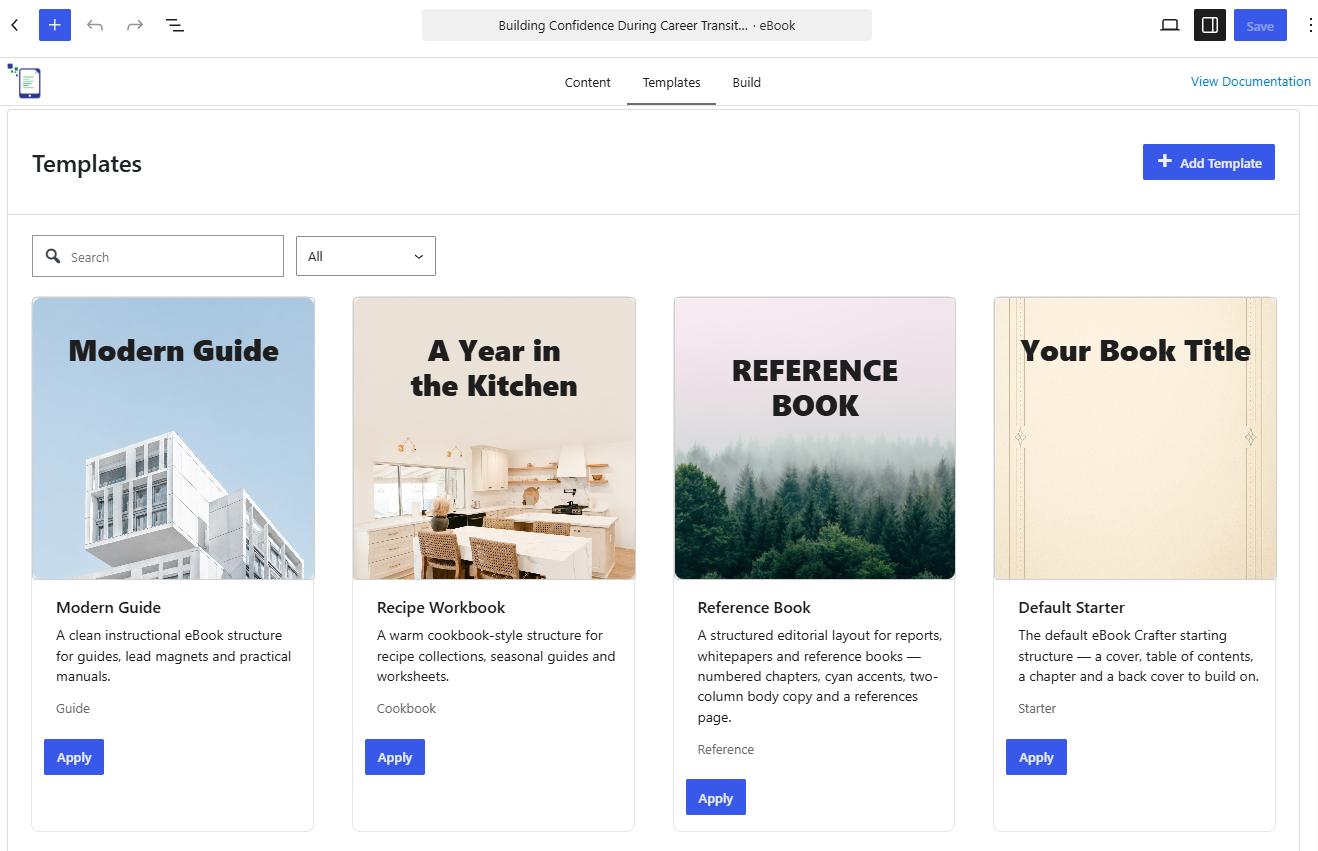
Finally, we will move to the Publish stage to export our eBook.
The Publish Stage
This is where eBooks will be exported from the content you put together and edited in the earlier two stages.
Click the Build tab, and the hit the Publish button.
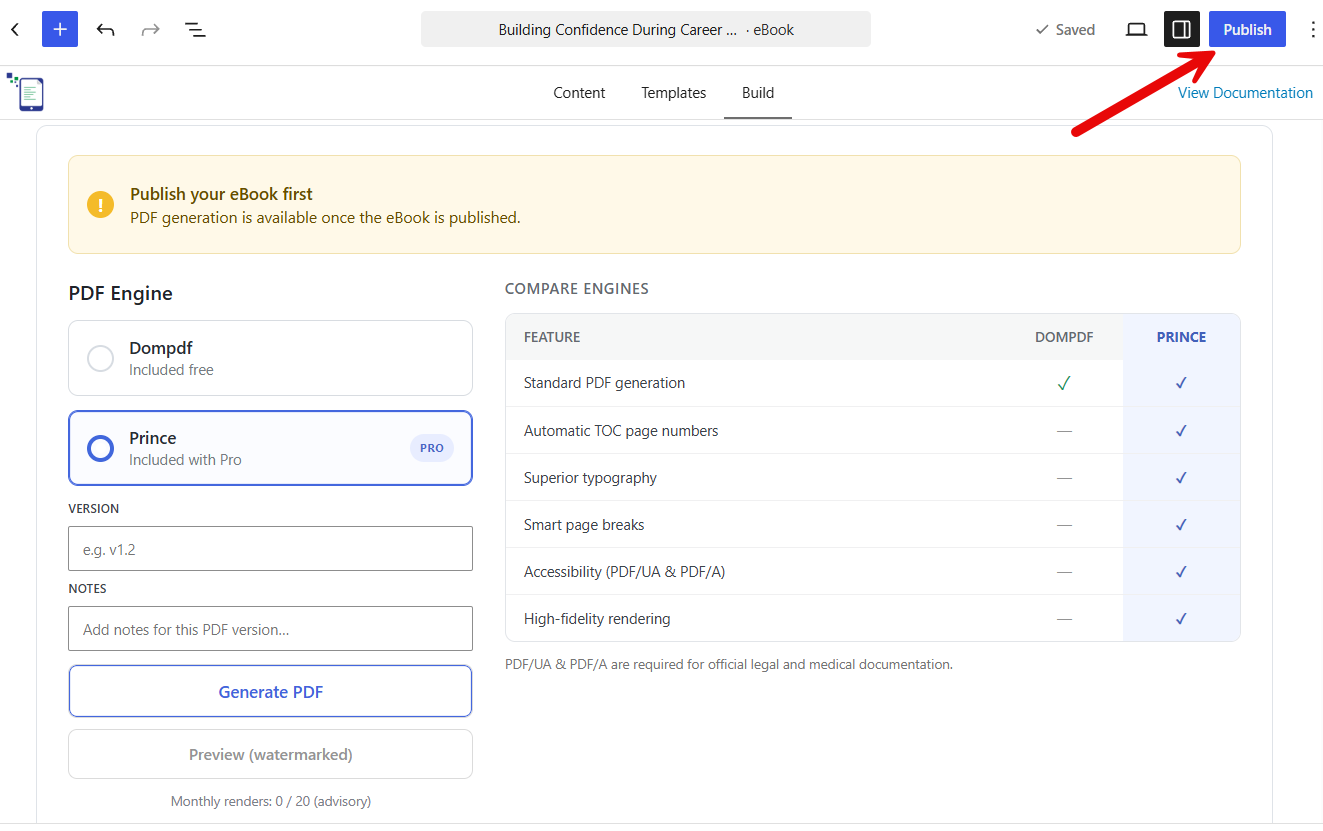
Next, add a version number and notes using the fields provided. Choose the PDF engine, either Dompdf or Prince, and click Generate PDF. The Prince engine is available only with the Pro version of eBook Crafter, and will help you generate PDFs with the following benefits:
- Automatic page numbering in the Table of Contents.
- Superior support for multiple fonts, across a wide range of languages.
- Smartly generated page breaks.
- Advanced support for accessibility.
- High-fidelity rendering of images and text.
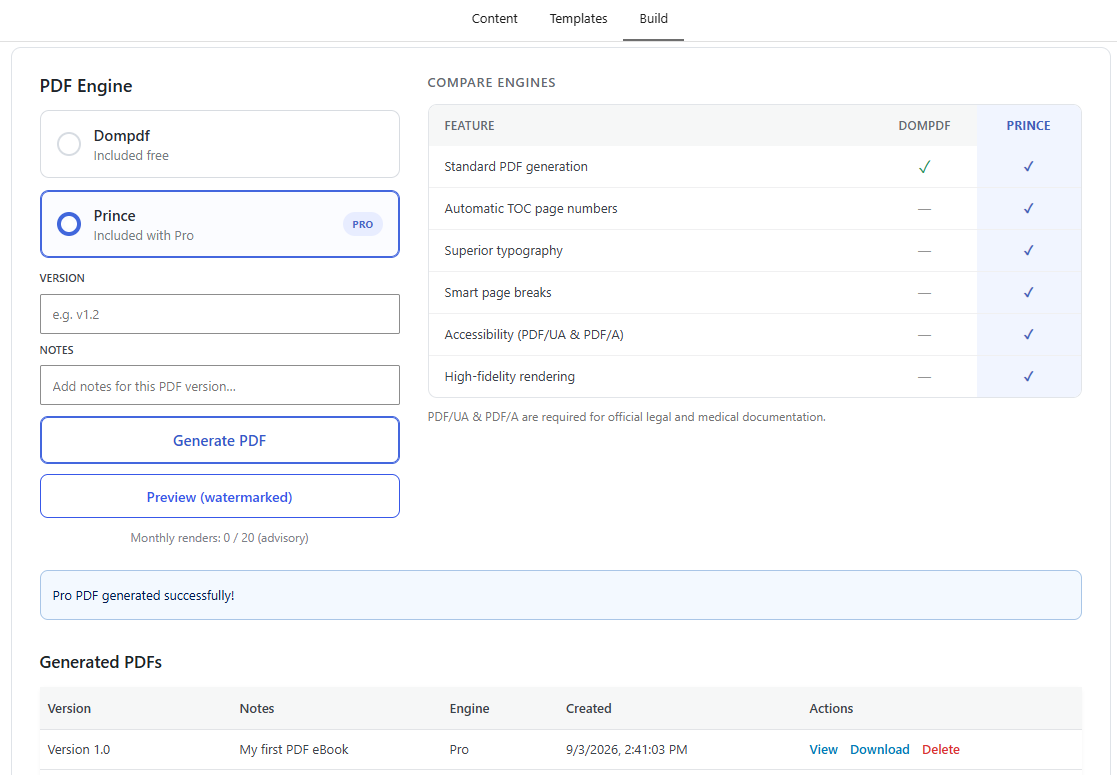
Based on the need for further updates, you can return to the Content tab and make more edits.
Your eBook is generated as a PDF and automatically added to your site’s Media Library. Now, you can:
- Sell it as a digital product through WooCommerce or your preferred platform
- Provide to exclusive members of a membership
- Share it directly via WhatsApp or email
- Include it in your existing delivery workflows
We’re planning to add more formats like ePub and MOBI down the road.
All files will be listed at eBook Crafter > eBook Library for easy reference.
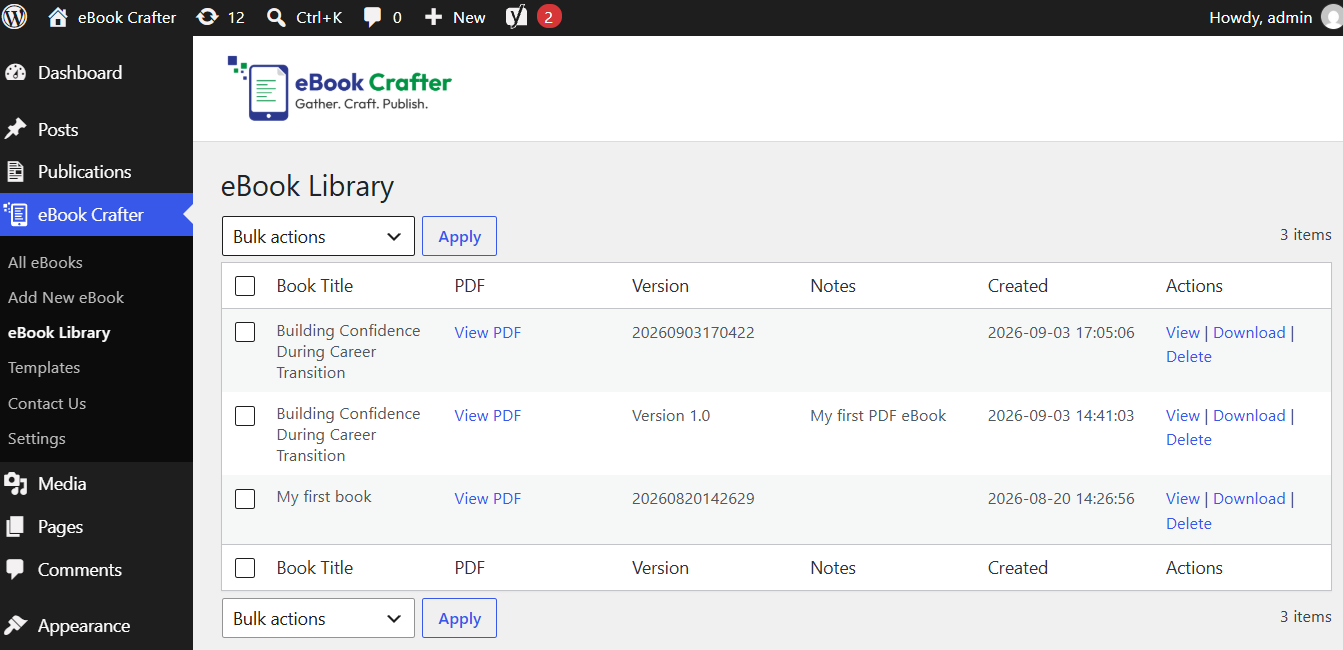
A Sample PDF eBook
Here’s an example of how your exported PDF eBook will look like:
Skip to PDF contentA Note on the eBook Crafter Limited Lifetime Deal
For solo creators and agencies considering this plugin for their own or multiple client implementations, eBook Crafter is offering a Founding Partners Lifetime Deal beginning January 10, 2026, and running through January 31st. Please refer to our lifetime deal page for more details.
The lifetime pricing structure will enroll you as a Founding Partner, with several benefits that are listed on the deal page. Standard annual plans will be available at all times for those who prefer that arrangement.