
eBook Crafter makes it simple to create eBooks directly within your WordPress dashboard. This guide walks you through how to create an eBook in WordPress using the Gather → Craft → Publish workflow.
What is eBook Crafter? #
eBook Crafter is a WordPress plugin designed to streamline the eBook creation process in WordPress. Whether you’re creating educational materials, marketing resources or digital publications, eBook Crafter will help you gather content, repurpose it and finally publish eBooks.
The plugin follows a simple three-step approach:
- Gather: Collect and organize your content
- Craft: Design, structure and repurpose the content for your eBook
- Publish: Share your finished eBook with the world
How to Create an eBook in WordPress (Quickstart) #
To get started with eBook Crafter, you’ll first need to create a new eBook project.
Step 1: Access the eBook Dashboard #
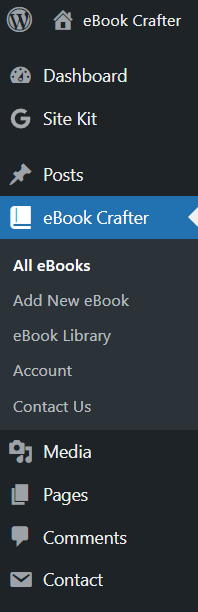
Navigate to your WordPress admin dashboard and locate eBook Crafter in the sidebar menu. Click on eBook Crafter to access your eBook management dashboard.
The eBook Crafter dashboard pages will show you a list of eBooks you’ve already created.
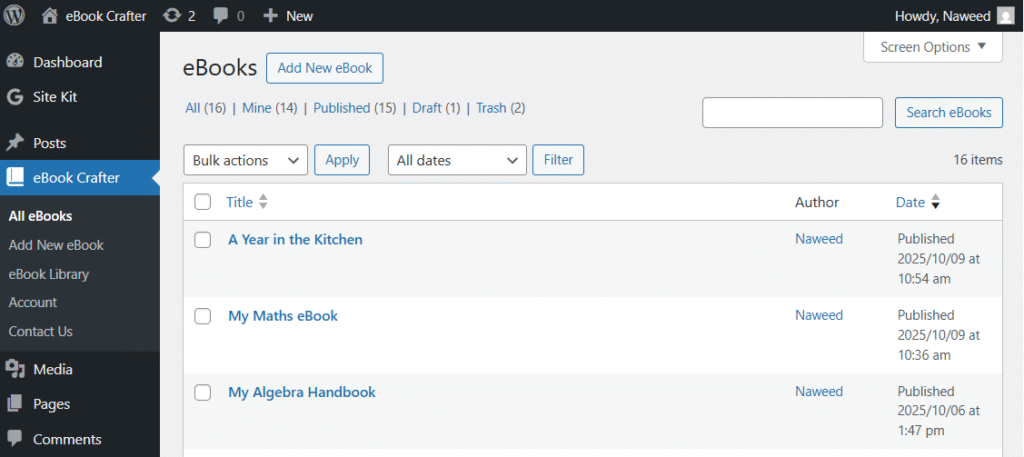
From this dashboard, you can:
- View all your existing eBooks and click through them to make edits
- Check the status of each project (Published, Draft or Trash)
- See creation dates and last modified times
- Access bulk editing tools
Step 2: Create a New eBook #
Click the Add New eBook button to start your eBook project.
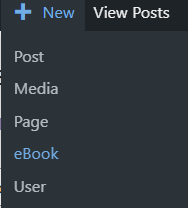
You can also click the + sign at the top admin bar, followed by eBook.
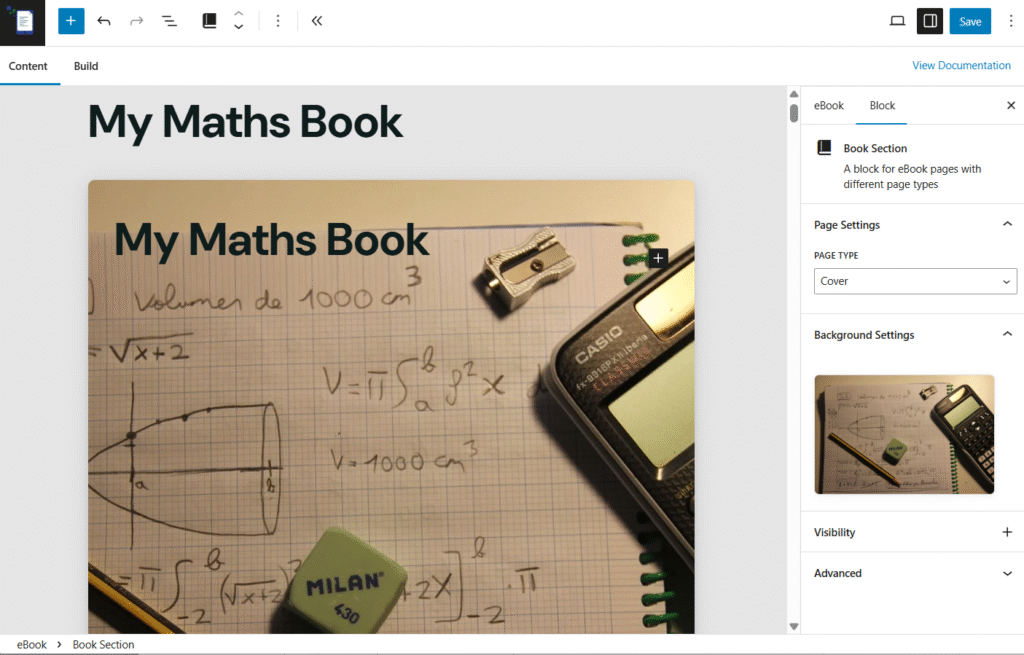
This action will take you to the eBook editor where you can begin putting together your content. This page uses WordPress’ Block Editor to help you create your eBook. The Book Section block will let you add content from scattered and archived posts on your WordPress site.
First, you can set up a suitable front cover image to replace the default one.
Step 3: Set Up Your eBook Structure #
Once in the editor, you’ll see the eBook creation interface with the various settings.
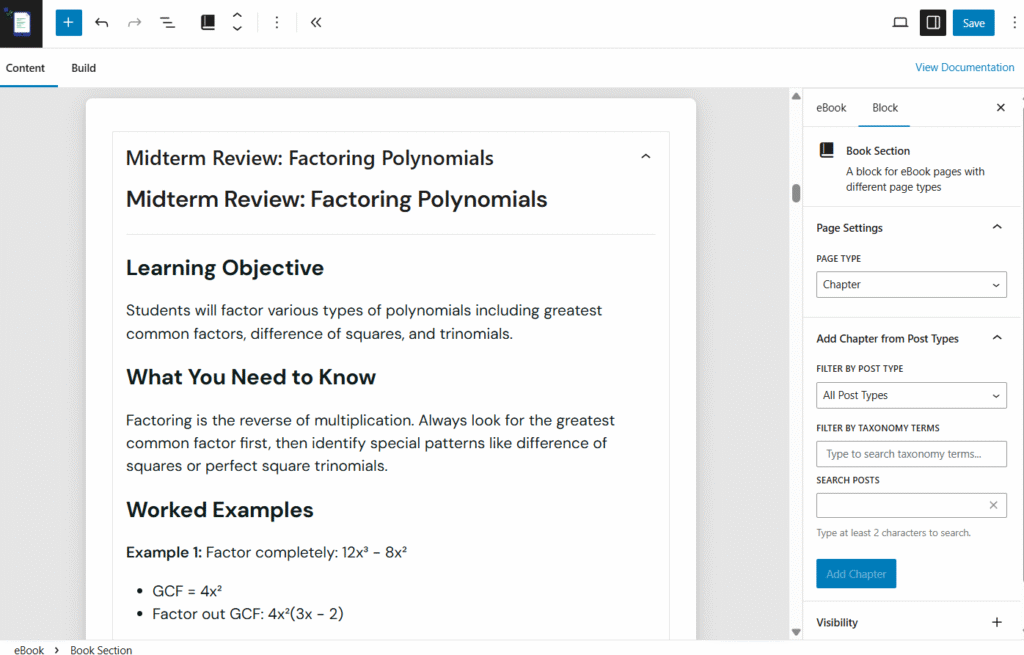
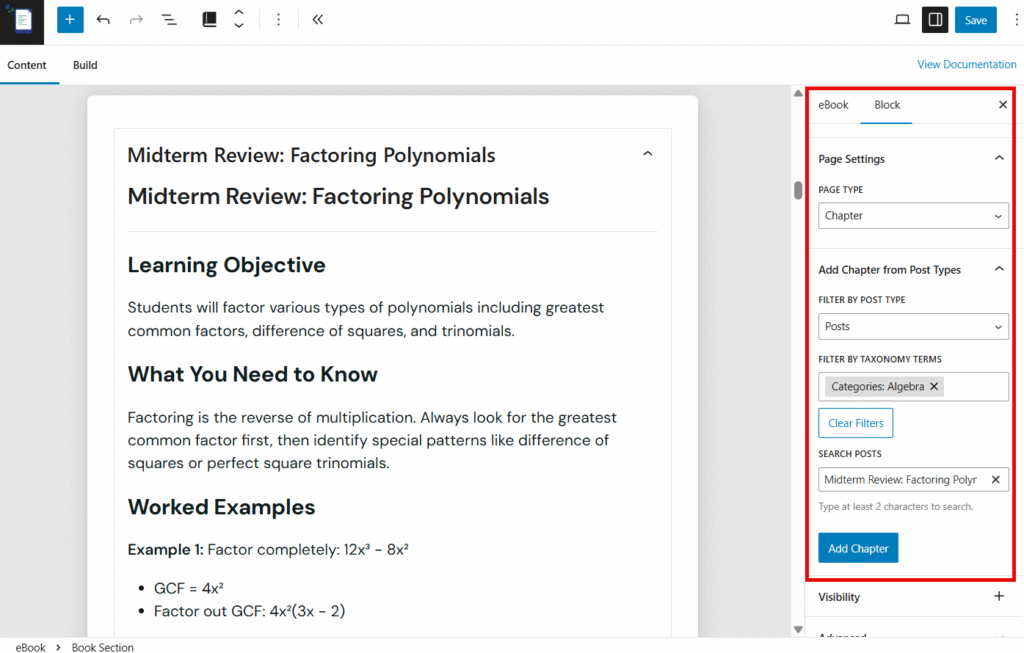
Search for posts from the existing Published posts, custom post types and pages.
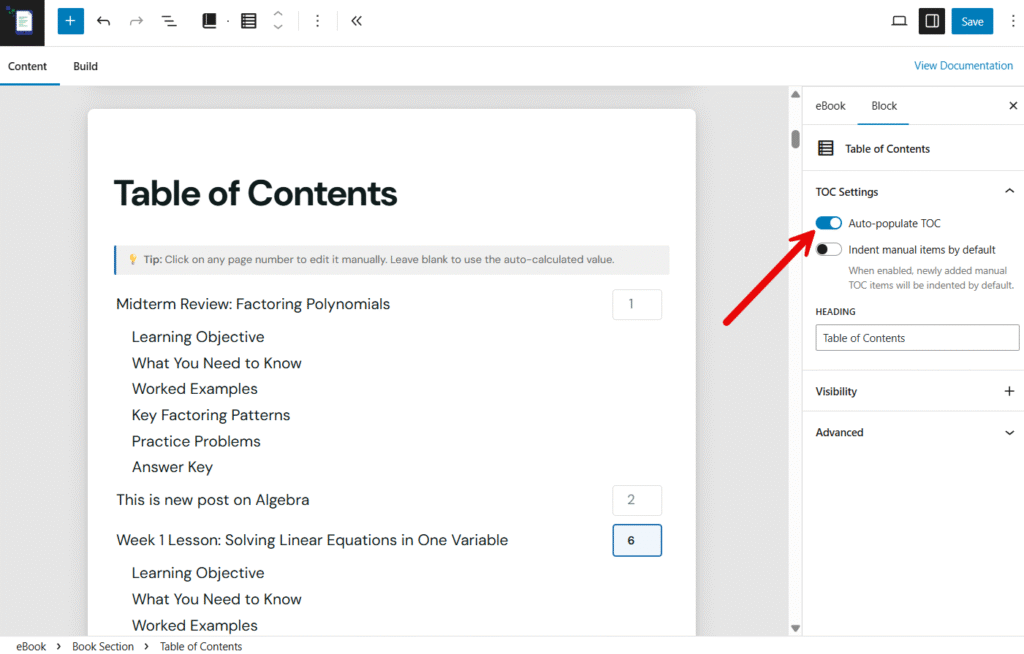
You can choose to auto-populate a Table of Contents using the toggle switch in the block’s settings:
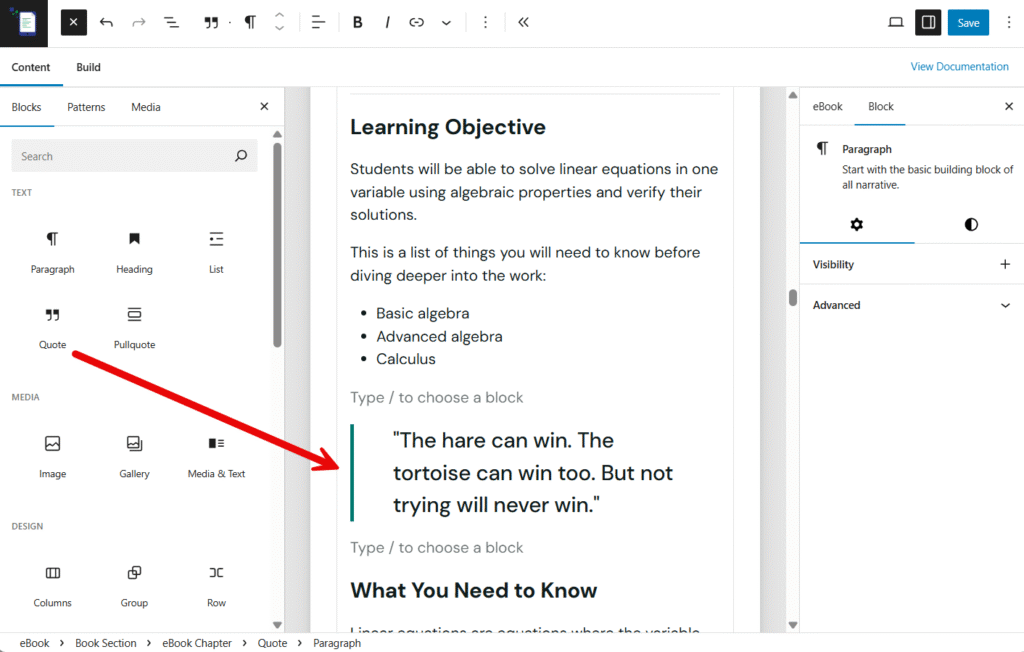
You can modify the content gather through the Chapter blocks by adding your own blocks with new content. Content can be added from the following approved blocks:
- Paragraph
- Heading
- List
- Quote
- Pullquote
Finally, you can set a back cover image by clicking on the default one to replace it from the block’s settings.
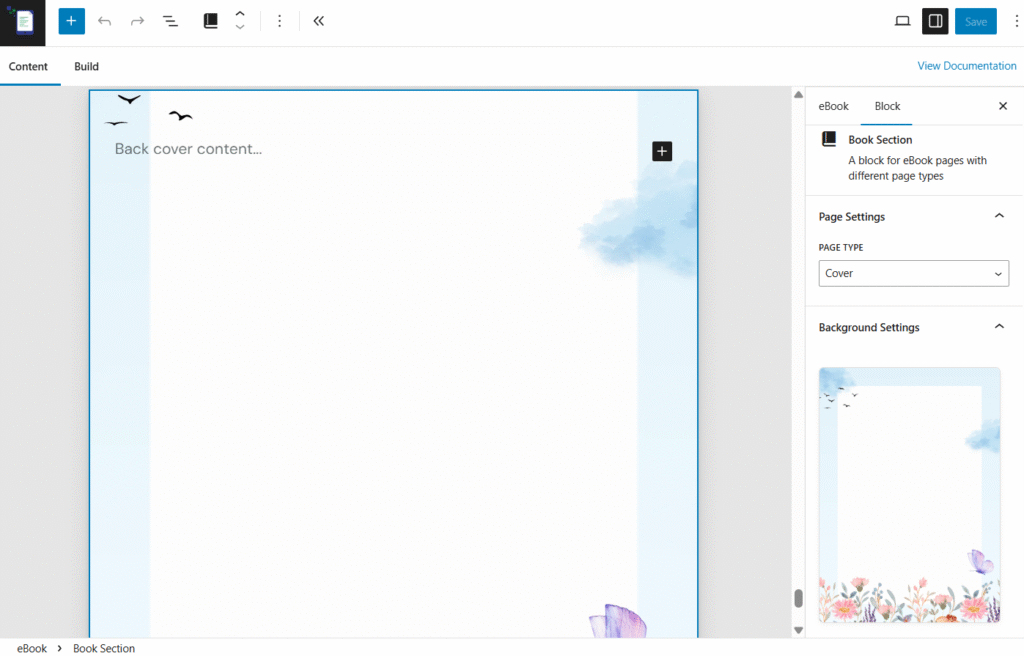
Building your eBook #
To create an eBook from the content you have assorted, go to the Build tab and fill out the fields for PDF notes and PDF version to help you identify each version generated.
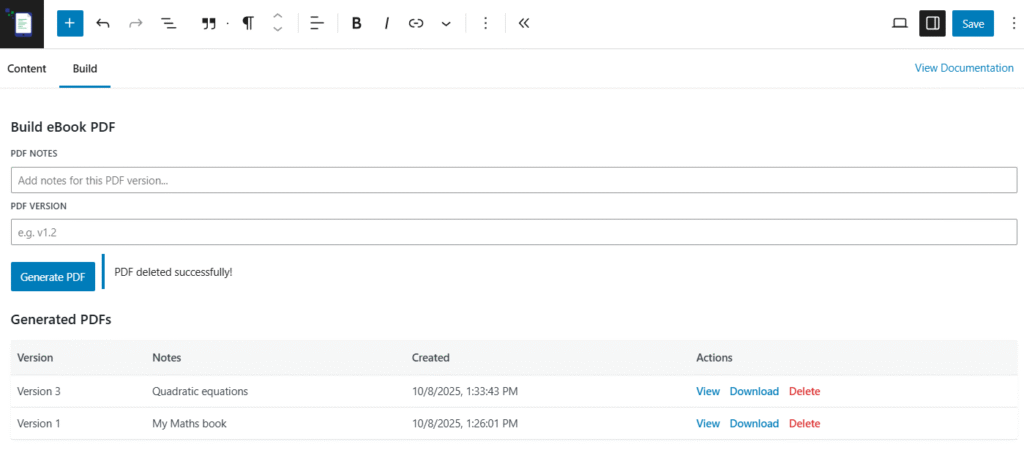
Every eBook generated will be available in your site’s Media Library. If you choose to delete a version of the eBook, it will be deleted from the Media Library as well.


